Google OAuth Setup
Complete walkthrough for obtaining Google OAuth credentials and wiring them into the exact callback path this backend uses (/api/v1/auth/google/callback). PKCE + signed state are already built in.
1. Create / choose a Google Cloud project#
- 1
Open console.cloud.google.com
Open the console, top-left project selector → NEW PROJECT. Name it e.g. saas-starter-kit, keep the default location, and Create.

Google Cloud Console top bar with the project selector dropdown visible.
2. OAuth consent screen (Google Auth Platform)#
Google moves this screen's layout now and then. Depending on when you open the console it lives under “APIs & Services → OAuth consent screen”, or under “Google Auth Platform → Branding / Audience”. The fields are the same regardless of layout.
- 1
Choose the user type (audience)
“External” is the right choice for a starter kit you intend to sell or deploy publicly — any Gmail address can sign in. “Internal” appears only inside a paid Google Workspace organization and lists your own domain users exclusively; pick it only if you deploy to your own company's Workspace.
- 2
App name and support email
Enter the application name shown to users at sign-in (e.g. “My SaaS App”) and a support/development contact email — buyers should put their own address here, not the seller's.
- 3
Authorized domains (when required)
“localhost” does not go here. For production add your deployed domains (e.g. yourapp.com). In publishing/testing with only local hosts you may often skip this field.
- 4
Add test users while in Testing mode
A consent screen in “Testing” status only admits accounts listed in Test users. Add the Google address you will log in with, or you will meet “Access blocked” with error 403: access_denied.
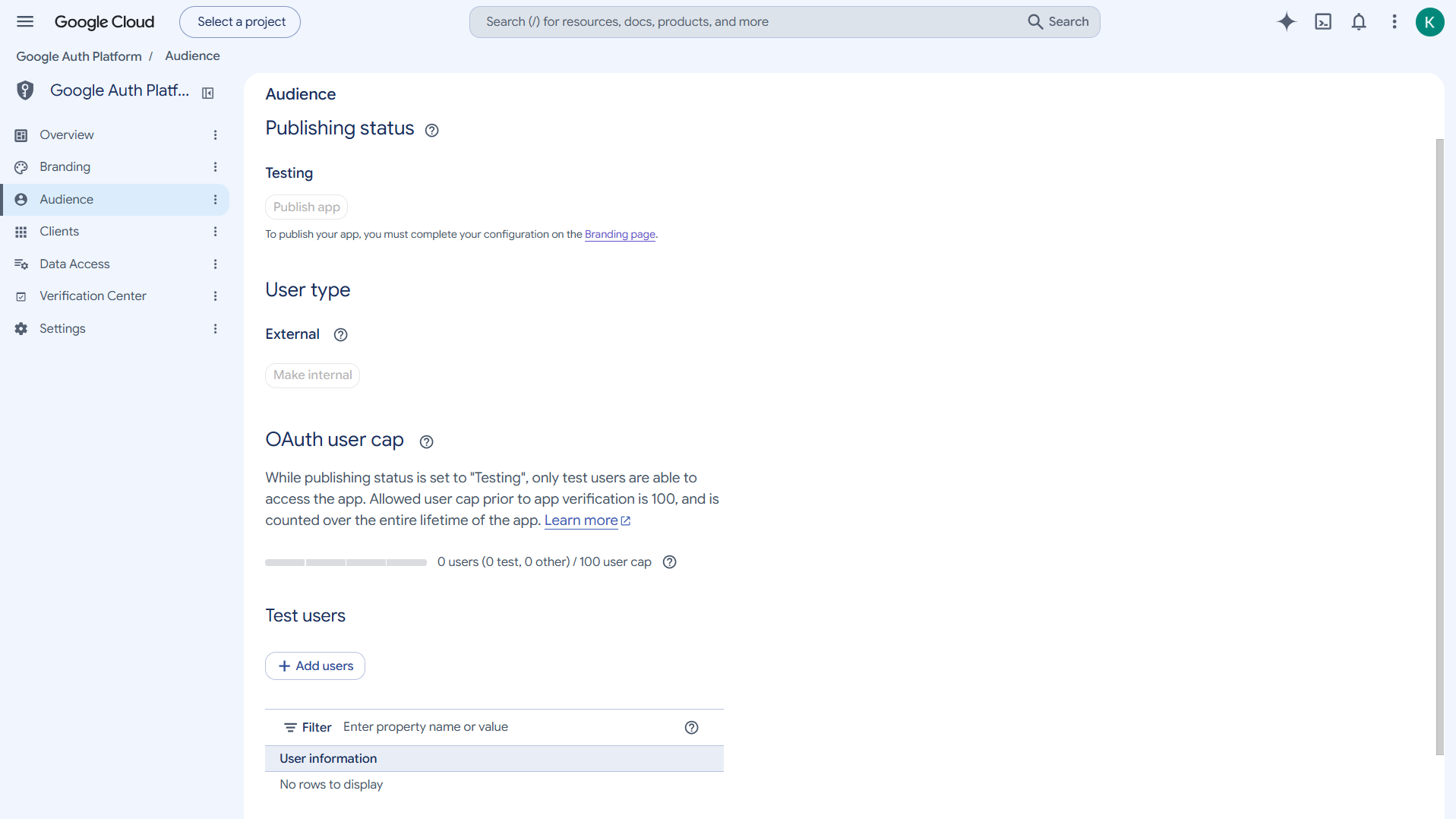
OAuth consent screen / Branding overview showing app name, support email and scope list. - 5
Scopes
Default scope set (openid, userinfo.profile, userinfo.email) requires no extra configuration — the backend requests exactly those.
3. Create the OAuth client#
- 1
Credentials → Create Credentials → OAuth client ID
In the left menu choose Credentials, click Create Credentials → “OAuth client ID”, and set Application type = Web application — this matches the backend implementation (a confidential web client using code + PKCE).
- 2
Authorized JavaScript origins
Add the frontend origin WITHOUT any path: for local development http://localhost:3000 (or the tunnel domain). Google uses this list only as an extra guard for token requests made from browser JavaScript.
- 3
Authorized redirect URIs — must match GOOGLE_CALLBACK_URL exactly
Add the backend callback path character-for-character (development): http://localhost:5000/api/v1/auth/google/callback\n\nNo trailing slash, no /google-callback spelling variant. backend/.env defines its own GOOGLE_CALLBACK_URL which POSTs the identical string with the authorization request — Google only allows redirect targets that appear here.
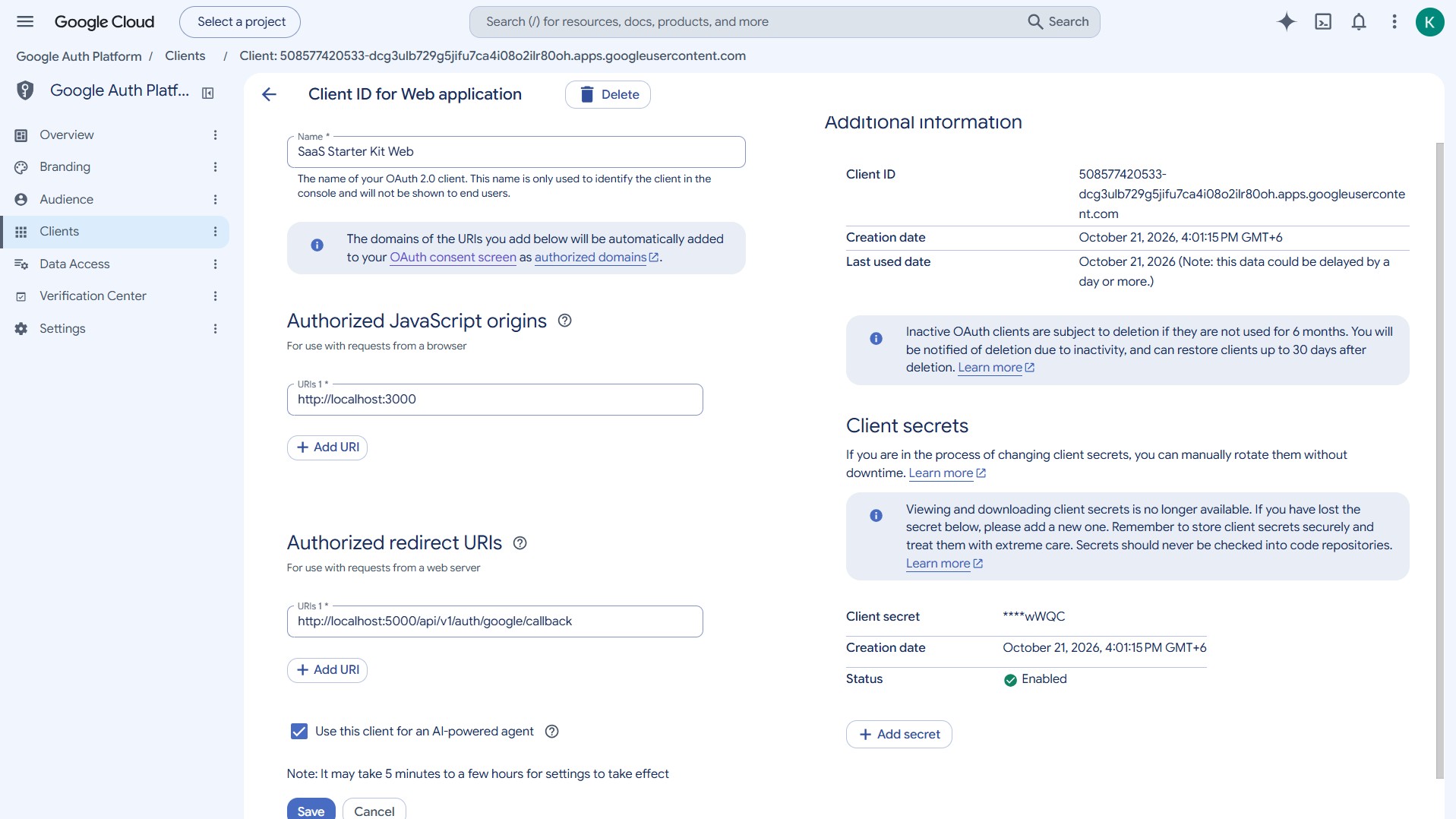
OAuth client editing view with “Authorized redirect URIs” populated (values may be blurred). - 4
Create, then copy the credentials securely
Click Create. A dialog shows the Client ID and Client Secret — copy both immediately and store them ONLY in backend/.env (or your secret manager later). Never paste them into issues, screenshots or chat.
- 5
Add the values to the backend environment
Edit backend/.env — the backend validates the GOOGLE_* trio (any of them present as empty strings is tolerated by design, OAuth then reports “not configured”):
backend/.env GOOGLE_CLIENT_ID=your_google_client_id GOOGLE_CLIENT_SECRET=your_google_client_secret GOOGLE_CALLBACK_URL=http://localhost:5000/api/v1/auth/google/callback
4. Test the login flow#
- Frontend running with
NEXT_PUBLIC_API_URL=http://localhost:5000/api/v1infrontend/.env.local(restart the frontend after adding it). - Open
http://localhost:3000/login→ click Continue with Google. - Choose the test user on Google's account picker and accept the consent screen.
- The browser then visits
/auth/verify-otp. No session cookies are issued by the OAuth callback: a 6-digit code is emailed through Resend, and only entering that code creates the session and opens the dashboard. For an existing email, the Google account is LINKED to that user; for a new address the account is created after the OTP succeeds.
If the first attempt shows Google “Access blocked”, re-check consent-screen test users — that is a Google-side audience rule, not a kit bug.
5. Production domains and redirect URIs#
Google treats each scheme://host:port as distinct. When you deploy: add the production origins (https://yourapp.com) and production redirect URI (https://api.yourapp.com/api/v1/auth/google/callback) as NEW entries alongside the localhost ones, update backend/.env GOOGLE_CALLBACK_URL and FRONTEND_URL to the production values, and set the consent screen's authorized domain. Localhost entries do not need removal.
OAuth Error Reference#
| Error | Likely cause → fix |
|---|---|
| error 400: redirect_uri_mismatch (on Google's page) | The URI Google received is not in the client's Authorized redirect URIs → compare the exact string (scheme, port, path, no trailing slash) with GOOGLE_CALLBACK_URL and the console entry |
| Access blocked · error 403: access_denied | Consent screen is in Testing status and the account is not a Test user → add the Google address under Test users (or publish when ready) |
| Error 401: invalid_client | GOOGLE_CLIENT_ID or GOOGLE_CLIENT_SECRET wrong/copied incompletely → copy both anew from the Credential details view |
| Backend log: “OAuth not configured …” | GOOGLE_* variables missing or empty in backend/.env → add the trio and restart |
| Backend log: invalid_grant · Missing code verifier | PKCE verifier was not carried to the token exchange → the shipped implementation already passes codeVerifier (camelCase) to google-auth-library's getToken(); if you modified that call, snake_case code_verifier is silently ignored |
| Throws after Google and lands on /login?error=… | Backend exchange failed → read the “GOOGLE OAUTH ERROR” block in the backend console; it prints Google's exact error description |
| Redirected to wrong frontend | Resolved redirect base = FRONTEND_URL — if that env var is missing/wrong the browser goes to localhost:3000 or the old host |
| Cookies rejected (nothing happens after consent) | oauth_state/oauth_code_verifier cookies must survive the backend→frontend hop; keep backend and frontend on same-site localhost during dev, and use their production match between exact domains in prod |
Completion Checklist#
Tick each row after you verified it — progress is remembered in your browser (localStorage, item ids only, no personal data). If anything fails, the Troubleshooting page lists verified fixes for each error.